Tampilkan postingan dengan label ANDROID. Tampilkan semua postingan

More Samsung Galaxy S4 details and images surface ahead of launch


Galaxy s4 leak - 006
Like most smartphone releases, details surrounding the Samsung Galaxy S4 are pouring in from every direction just before the official unveiling this evening. More information about the international (or at least the Chinese) variant of the phone have popped up, this time bringing higher quality photos, components details, and videos of the headlining features for Samsung’s next flagship Android smartphone.
There’s been no shortage of whispers surrounding the Samsung Galaxy S4 and its suspected innards, though the sheer volume of rumors breeds doubt that most of them are true. Samsung’s Galaxy line has grown popular enough that the first wave of renders and specs that “leak” are often little more than wishlists from fans eager to see their favorite manufacturer deliver the best possible product for the coming year. The Galaxy S4 is upon us nevertheless, and while it may not have a lock on being the best phone of 2013, what we know about it so far assures that it will be a highly sought after handset.
Samsung Galaxy S4 - leak
From previous leaks of Chinese models and a sneak peak from Samsung earlier in the week, we know that the front of the Galaxy S4 will be nearly identical to its predecessor. The Galaxy S3 is hands-down the best selling Android phone to have ever been made, so it would be silly to mess with that design if you don’t have to. Today more images and video emerged, giving expectant fans a nearly completely look at what seems to be a variant of the GS4.
There are some subtle differences to the casing, since the 4.99-inch screen is a slight increase over the 4.8-inch found in last year’s Galaxy S3. The increase in size is matched by a drastic increase in resolution, bringing the often rumored 1080p SAMOLED+ screen to replace the previous 720p screen. The added screen size and extra 500mAh found in the battery make the GS4 an imperceptible 5 grams heavier, but will also be a full millimeter thinner than the Galaxy S3.
Samsung Galaxy S4 - leak - 002
As if the display and battery weren’t impressive by themselves, it’s being reported that the Galaxy S4 will pack a tri-core PowerVR 544MP3 GPU alongside the previously unearthed sort-of-but-not-really octo-core processor. The Exynos Octa has eight physical cores, split between four Cortex-A15 and four Cortex-A7 cores. The big.LITTLE setup here is designed to allow the more powerful cored to handle any heavy lifting that needs doing, while the less powerful cores handle low power tasks like garbage collection. This is the first Android phone to deploy this setup, and while the concept suggests that there will be significant gains in battery life there’s yet to be any significant real world testing.
Samsung won’t win the hearts and minds of the world on hardware alone, and just like last year it looks like the company is stuffing their TouchWiz flavor of Android with a ton of features that you can only find on their phones. We’ve heard plenty about the ability to use your eyes to control the phone, and now there’s a video of one such behavior in action. If you are watching a video on the Galaxy S4 and you look away from the screen, Samsung’s Smart Pause will pause the video without any commands from the user, and will begin playing again once your face is detected by the front facing camera. Like many of Samsung’s features, SmartPause is likely something that you’ll have to activate and it is unlikely to work in apps like YouTube and Netflix.
We’re looking down the home stretch for Samsung to officially pull the curtain off of this phone, and if history is any indicator there’s going to be plenty to talk about tonight. Samsung’s Galaxy S3 was widely considered the first Android phone to ever be able to compete with the iPhone one on one, and Samsung’s Galaxy S4 has some pretty big shoes to fill as a result.

Screen Shot 2013-03-14 at 11.18.56 AM

Screen Shot 2013-03-14 at 11.18.45 AM


Read more »»  

Tutorial Inject SMART On Motorola Droid 2 / Droid 2 Global / Droid X

Bahan-bahan yang disiapkan :
1. QPST versi 2.7 build 323
2. CDMA Workshop versi 2.7
3. HW Virtual Serial Port single mode v.3.1.2
4. Motorola USB Driver terbaru
5. PRL Smart 1009
6. No MDN yaitu 10 angka nomor Smart tanpa angka “0” didepannya
7. No Akey yaitu berupa 26 angka yang diberikan oleh CS Smart sewaktu mendaftarkan nomor inject
8. No MIN yaitu 10 angka tanpa “0” didepannya yang diberikan CS Smart
9. Kabel micro USB

LANGKAH PERTAMA


Jika Droid 2 / Droid X anda baru pertama kali dibuka (unboxing) dari beli baru atau pertama kali booting
sehabis flash ulang sbf via rsdlite pasti akan diminta untuk aktifasi.
Bypass saja aktifasi kodenya dengan : tekan layar posisi pojok kanan atas, pojok kanan bawah, pojok
kiri bawah dan pojok kiri atas (searah jarum jam)

Jika proses ini sudah dilewati maka kita langsung ke proses injectnya
Sambungkan droid 2 ke komputer melalui kabel micro usb, jangan lupa untuk mencentang usb debugging
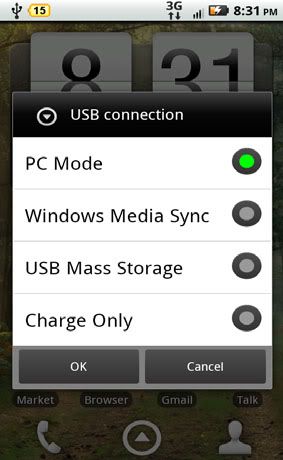
mode di settings – application – development. Pilih PC Mode


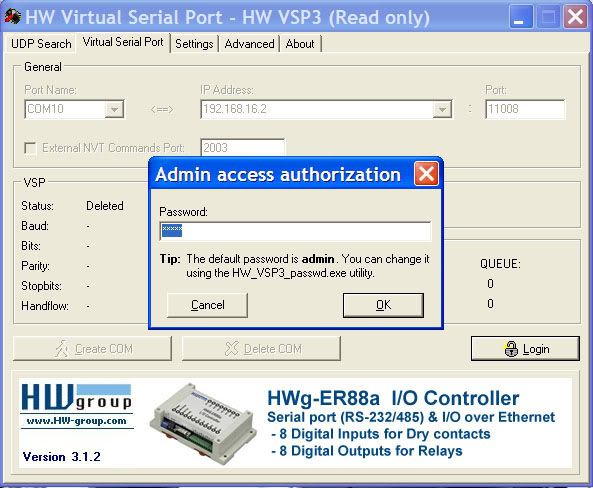
Buka HW Virtual Serial Port, klik login lalu tekan OK


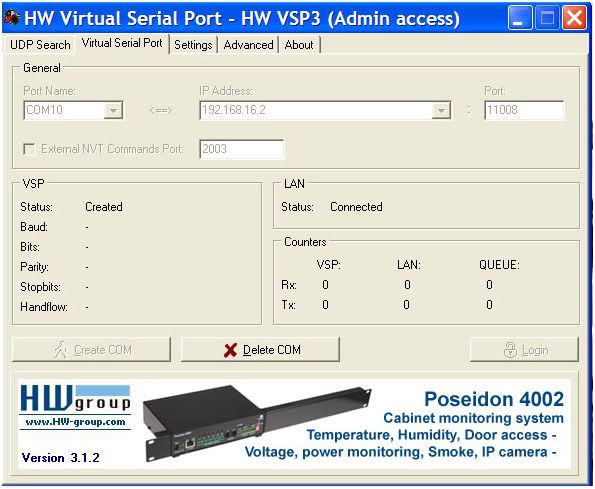
Set IP Address ke : 192.168.16.2 port 11008 lalu pilih Port Name : COMxx yang tidak terpakai, misalnya COM10


Pilih menu Settings, unclick NVT Enabled


Kemudian kembali lagi ke menu Virtual Serial Port
Tekan Create COM sampai muncul status connected dan Droid 2 sudah siap lanjut ke proses berikutnya


LANGKAH KEDUA :

Langkah selanjutnya adalah memasukkan PRL melalui CDMA Workshop agar sinyal droid 2 dapat berada
di jaringan Smart dan memasukkan username evdo melalui write nv items.
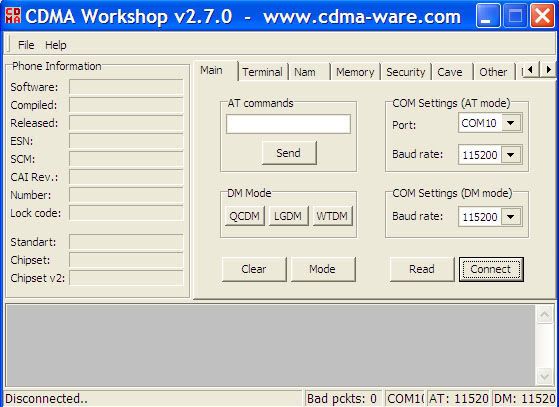
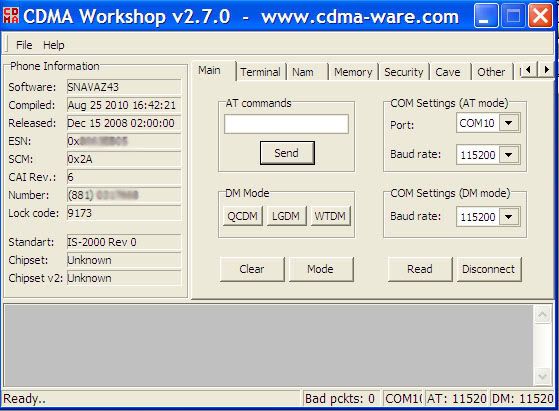
Buka CDMA Workshop 2.7, pilih COM Settings misal port COM10, klik Connect


Click Read agar terbaca informasi ESN dan keterangan lainnya yang berkaitan dengan Droid 2


Setelah itu Unlock SPC / MSL Code dengan menginput “000000” di tab Security – SPC


Setelah Code SPC Correct, maka droid 2 sudah unlocked dan siap untuk di masukkan PRL dan write nv items

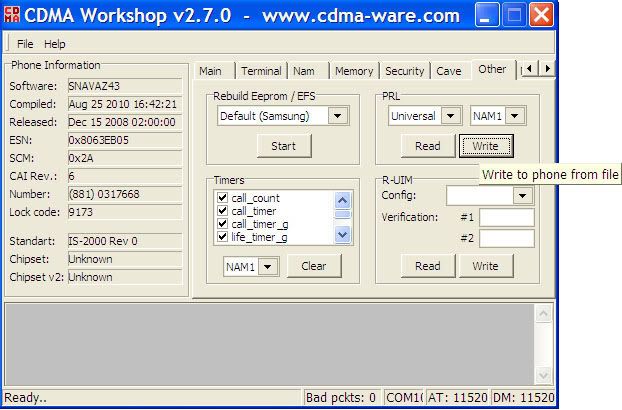
Langkah berikutnya yaitu memasukkan PRL Smart ke Droid melalui
tab Other – PRL – Write
(carilah di komputer sebuah file berekstensi .prl, pastikan itu adalah PRL Smart)


Jika di droid 2 sebelumnya menggunakan provider lain misal Verizon, lambing sinyalnya masih berupa segitiga maka setelah selesai di masukkan PRL Smart maka segitiga tersebut akan hilang. Jika sebelumnya sudah menggunakan PRL Smart, langkah ini bisa di -skip- dan ke langkah selanjutnya.

Kemudian langkah berikutnya adalah memasukkan parameter username EVDO ke droid 2, langkah ini penting agar proses inject menjadi cepat, ringkas dan mudah. Kabel usb jangan dicopot dulu, biarkan Droid 2 masih tersambung ke CDMA WS karena proses injectnya belum selesai.

Silahkan mengunjungi situs www.whiterabbit.org/android untuk mengkonversi username evdo menjadi file NVRAM, format parameter yang harus dikonversi adalah mdn@sinarmas-telecom.net.id, misalnya 8812345678@sinarmas-telecom.net.id lalu klik generate di halaman situs tersebut.


Setelah di generate maka akan di dapatkan sebuah file berekstensi *.txt

(contoh) 8812345678@sinarmas-telecom.net.id_cdmaws27.txt
File mdn@sinarmas-telecom.co.id_cdmaws27.txt inilah yang akan diinject ke Droid 2 dan ternyata jika dari Smart ada perubahan parameter lagi, cukup ke situs ini dan rubahlah parameter sesuai dengan yang ada sekarang.

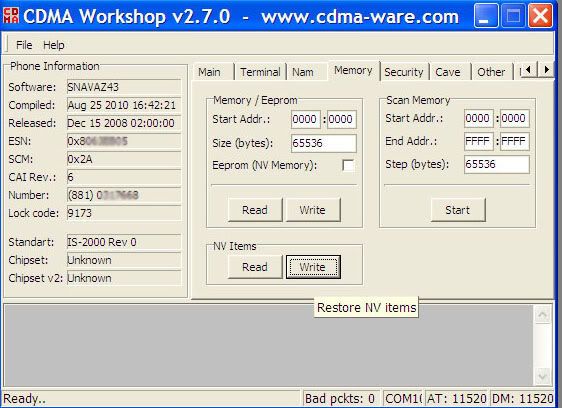
Setelah kita mendapatkan File NVRAM dari situs whiterabbit.org/android maka kita masukkan file ini ke Droid 2 melalui CDMAWS

Pilih tab Memory lalu di area NV Items tekan tombol write lalu carilah file mdn@sinarmastelecom.net.id_cdmaws27.txttersebut.


Jangan lupa di close tombol X dan cdma WS akan restart, segera cabut kabel USB

Setelah sukses di write nv items maka CDMA Workshop di close, kemudian tekan OK dan CDMA WS akan restart, segeralah copot kabel USB nya agar settingan tidak reset lagi.

Setelah sukses inject PRL dan Parameter Evdo melalui CDMA Workshop maka langkah berikutnya yaitu memasukkan parameter MDN, MIN dan password Evdo di Program QPST

LANGKAH KETIGA

Pastikan di HW Virtual Serial Port, Port Com masih dalam status connected
Buka QPST Configuration, pilih port com yang tersambung dengan droid 2


Setelah itu klik menu Start Clients lalu pilih SERVICE PROGRAMMING


Service Programming akan terbuka, kemudian tekan tombol Read From Phone
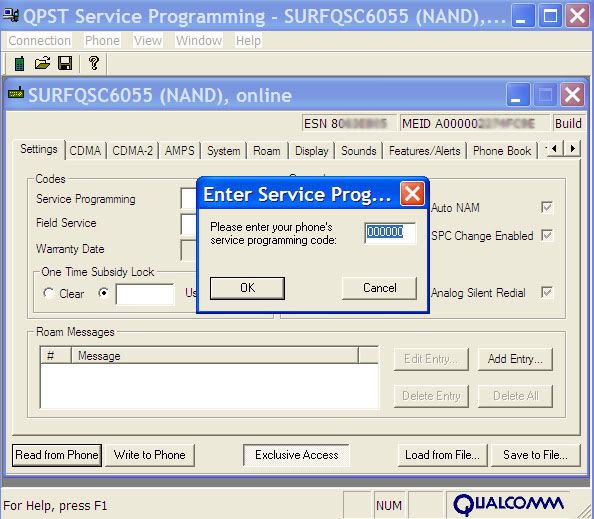
Input service programming code: 000000 dan tekan OK


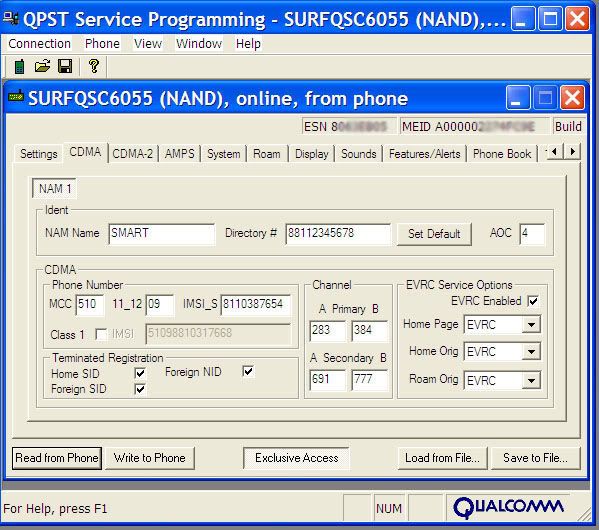
Lalu ke tab CDMA, kemudian input :

NAM Name: SMART Directory # : No MDN (nomor smart) tanpa 0 didepannya
MCC : 510 11_12 : 09 IMSI_S : No MIN
Channel : Primary A (283) Primary B (384) 
Channel : Secondary A (691) Secondary B (777)


Kemudian ke tab System

Set Home SID/NID ke : 10608 / 65535


Setelah itu pilih tab M.IP, set Mobile IP Behaviour ke : Mob + Simp f/back
Pastikan juga User Profile sudah muncul akibat dari inject-an parameter NV items di CDMA WS


Ke tab PPP Config¸ tekan Um, masukkan password dibawah field username.
Password berupa No ESN


Lalu ke AN, masukkan password


Setelah semua parameter sudah pas dan diinput, klik tombol Write to Phone maka Droid 2 akan restart, Segera cabut kabel USB.

LANGKAH KEEMPAT

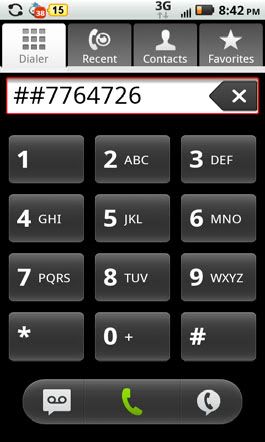
Jika semua parameter dan settingan sudah diinput melalui CDMA Workshop dan QPST, maka langkah terakhir inject ialah memasukkan nomor AKEY (Authentification Key) berupa 26 angka yang diberikan oleh staff gallery Smart. Tekan##7764726 lalu Dial / CALL


Masukkan SPC password : 000000


Input Akey berupa 26 angka di Menu AKEY


Perhatian : Input Akey cukup sekali saja, jangan sampai berulang kali. Jika akey diinput berulangkali
maka proses inject tidak akan berhasil.


Setelah Akey di input. Tekan tombol Done dan Droid 2 akan restart.
Selesai restart/reboot, seharusnya logo 1x atau Evdo sudah muncul.
Jika Evdo belum muncul, kemungkinan data belum diaktifkan di system smart, maka trigger ke *3333 untuk mengaktifkan Evdo.
Setelah langkah terakhir ini selesai dilakukan, seharusnya sudah bisa dilakukan panggilan telp dan sms, serta koneksi internet melalui jaringan Evdo (jika daerah anda tercover area Evdo Smart). Jika pulsa mencukupi tekan :

*333*30*0 (langganan internet unlimited sebulan paket regular speed maks. 153 kbps) Rp. 50 rb/bulan
*333*30*1 (langganan internet unlimited sebulan paket regular speed maks. 512 kbps) Rp. 75 rb/bulan

Dan untuk tarif serta paket internet lainnya silakan buka website : www.smart-telecom.co.id

QPST 2.7 Built 301
qxdm_3.9.19
QPST_2.7_Build_215
qpst_2.7 Build 323
PRL_SMART_dan_JUMP_2
CDMA Workshop 2.7
DFS_1.0.3910.35377
ISO-8859-1__PRL Fixxx
hw-vsp3-single_3-1-2
USB_Drivers_32_bit_4.6.0


Terima kasih. Selamat menikmati kecepatan dan kenyamanan berakses menggunakan layanan SmartFren.
Read more »»  

Tutorial Inject Flexi Evdo di Samsung Galaxy Tab Sprint SPH-P100


Software :
- QPST 2.7 build 323
- QPST 2.7 build 215 
- CDMA Workshop 2.7 

Lain-lain yang perlu disiapkan juga:
- Nomor Flexi yang siap diinject
- AKEY (26 digit) yang didapat dari gallery Flexi.
- PRL Flexi 

Ada 4 langkah supaya anda bisa digunakan baik sms maupun data
- UNLOCK MSL/SPC CODE
- Setting Akey, MIN dan MDN supaya bisa melakukan sms.
- Setting EVDO
- Final Setting

LANGKAH PERTAMA (UNLOCK MSL/SPC CODE):
- Instal applikasi dari android market : connectbot
Di pojok kiri bawah pindahkan ke local ketik sembarang nama misalkan Android lalu akan masuk ke layar hitam dng logo $
- Ketik : getprop ril.MSL
MSN/SPC Code anda yg 6 digit akan muncul

LANGKAH KEDUA (SETTING AKEY, PRL, MIN DAN MDN)

1. Instal CDMA Workshop 
- Hal pertama yang dilakukan adalah memasukkan AKEY, yaitu 26 digit angka yang diberikan oleh CS Flexi sewaktu mendaftarkan No Inject.
- Cara memasukkan AKEY ke Gtab harus masuk dalam mode DIAG -> tekan ##8778# akan masuk menu Phoneutil ganti PDA ke MODEM.
Jangan lupa Gtab dalam posisi USB Debuging ( masuk ke seting - application - development - USB debuging)


cara masuk ke menu DIAG MODE anda masuk ke memo (note) lalu di kolom search ketik : ##8778#


- Perhatikan di control panel – System – Hardware – Device Manager. Cari di port berapa samsung gtab terinstal, (misal) di port COM 7.
Buka CDMA Workshop (CDMA WS), pilih (misal) COM 7, lalu tekan CONNECT.
Pilih READ 
- Berikutnya anda perlu mengunlock HP dengan memasukan MSL/SPC lakukan pada tab security dan masukan SPC anda “6 digit″ dan tekan send, setelah dapat keterangan bahwa HP unlocked makan anda siap memasukan Akey.
- Pada CDMA workshop, ketikan atau copy pastekan 26 digit Akey pada Akey Calculator seperti gambar diatas pada bagian Dec, hanya 20 digit yang akan diterima text box Dec tersebut. 
- Lalu otomatis pada colom Hex akan muncul Akey Hex, anda dapat mengecek apakah Akey terrsebut sudah benar dengan memasukan ESN pada kolom ESN lalu click calc, pada checksum akan muncul 6 digit terakhir Akey Anda yang 26 digit itu, jika benar, maka Akey Hex sudah siap digunakan, copy paste dari kolom Hex ke colom Cave-Akey lalu pilih write.
- Akey anda sudah tertulis di HP Anda.

2. Instal QPST 2.7 build 3.2.3, colok Gtab ke PC dan buka program QPSTConfiguration.
- Pilih Add New Port, lalu pilih COM 7 (misal) sesuai config di CDMA WS
- Pilih Start Clients, pilih SERVICE PROGRAMMING dan select an active phone
- Tekan OK di Phone Selection
- Tekan READ FROM PHONE, tekan OK jika MSL Code muncul.

Di Tab Setting,
Slot Cycle Index : 2
Current NAM : NAM1
Auto NAM : dicentang

Di Tab CDMA, isikan parameter sbb :
NAM Name : Flexi
Directory # : No MDN (no flexi lengkap dengan kode area tetapi penulisan tanpa angka 0 misalkan 02144445555 ditulis 2144445555)
AOC : 2
CDMA
- MCC : 510
- 11_12 : 00
- IMSI_S : No MIN (sama dengan no MDN)
- Terminated Registration (Dicentang Semua – Home SID – Foreign SID Foreign NID)
- Channel Primary A : 119
- Channel Primary B : 384
- Channel Secondary A : 78
- Channel Secondary B : 777

Di Tab CDMA-2 (Optional)
NAM Name : Flexi
Directory # : No MDN (sama dengan MDN)
CDMA / True IMSI :
- MCC : 510
- 11_12 : 00
- IMSI_S : No MIN (sama dengan MDN)
- AOC : 2

Di Tab AMPS Abaikan saja

Di Tab System
HOME SID/NID (Double click)
Isi dgn parameter :
- SID : 10496
- NID : 65535
Preferred Mode dan seterusnya dipilih Automatic

Di Tab Roam
NAM Name : Flexi
Directory : No MDN (no flexi lengkap dengan kode area tetapi penulisan tanpa angka 0 misalkan 02144445555 ditulis 2144445555)
AOC : 2
Masukkan PRL di Prefered Roaming dgn klik tombol browse : pilih dr hardisk dimana anda simpan PRL

Di tab Display
Display Items :
- Banner : TELKOMFlexi (atau boleh pake nama anda, tdk berpengaruh ke parameter yg ada)
- Backlight : always on

INJECT SUDAH SELESAI.
Tekan Write to Phone, abaikan kalo ada error. Kemudian Gtab akan restart, setelah restart seharusnya sudah bisa melakukan sms.

LANGKAH KETIGA (MENGAKTIFKAN EVDO)

Sebelum langkah ini dilakukan harap daftarkan flexi anda terlebih dahulu untuk mobile broadband nya dengan cara ketik PROMO(spasi)BULANAN kirim ke 2255
Setelah itu akan ada infomasi bahwa broadband anda telah aktif dengan user id : 51000xxxx@telkomflexi.com dan password : ESN anda


1. Melalui QPST 2.7 build 3.2.3
Colok Gtab ke PC dan buka program QPST Configuration
Pilih Add New Port, lalu pilih COM 7 (misal) sesuai config di CDMA WS
Pilih Start Clients, pilih SERVICE PROGRAMMING dan select an active phone
Tekan OK di Phone Selection
Tekan READ FROM PHONE, tekan OK jika MSL Code muncul.

2. Di tab M.IP
Di User Profile, pilih profile 0, tekan edit
- Isi parameter di NAI : 51000xxxxx@telkomflexi.com (contoh 510002177777@telkomflexi.com)
- Isi parameter di Tethered NAI : 51000xxxxx@telkomflexi.com (contoh 510002177777@telkomflexi.com)
- Home Address : 0.0.0.0
- Primary HA Address : 255.255.255.0
- Secondary HA Address : 0.0.0.0
- lalu tekan OK

Di User Profile, pilih profile 1, ulangi proses seperti di point a.
Mobile IP Behavior : Simple IP Only

3. Di tab PPP Config
Pilih UM
Di PPP Authentication :
Isi Tethered NAI : 51000xxxxx@telkomflexi.com (contoh 510002177777@telkomflexi.com)
User ID : 51000xxxxx@telkomflexi.com (contoh 510002177777@telkomflexi.com)
Password : No. ESN
Centang Optimized Dormant Handoff
Kemudian Pilih AN
User ID : 51000xxxxx@telkomflexi.com (contoh 510002177777@telkomflexi.com)
Password : No. ESN
Lainnya, diabaikan.

4. Di Tab RmNet
Pilih Device 0, klik edit ---> jika tidak ada tinggal Add
Centang "Enable Auto Connection", klik OK

5. KLIK "Wite to Phone"

Setting Gtab Sudah Selesai. 
Setelah restart seharusnya logo 3G sudah muncul di notification.

FINAL STEP

Unistal QPST 3.2.3 lalu instal QPST 2.1.5
Masuk ke menu Service Programming.
Lalu pada tab PPP, isikan data seperti ketika mengisikan pada Tab PPP di QPST 2.7 Build 323.

Setelah itu write to phone lagi, maka gtab akan restart lagi.

Setelah selesai restart, (Bagi yang berOS Froyo) lakukan langkah seperti diawal2 lagi yaitu
Masuk ke aplikasi NOTE ketik di kolom search ##8778# --> masuk phoneutil , ubah setting dari Modem ke PDA.


CARA STREAMING YOUTUBE via EVDO 

##3282#
pilih edit 
password : MSL/SPC masing2 gtab
pilih other
pilih multimedia

RTSP proxy address : kosongkan
RTSP proxy port : 0
HTTPD proxy address : kosongkan
HTTPD proxy port : 0

Selamat menikmati streaming Youtube via EVDO
Read more »»